Eclipse SOP creator is a desktop app for the creation, customization and storage of SOPs or training content. In the SOP builder tab, protocols can be copy and pasted or manually typed,whilst in the layout tab users can choose from the library assets to populate the virtual laboratory. This section will outline the various controls used to navigate Eclipse Creator, along with sharing resources for user support. Below is a short tutorial video to help get you started:
Controls/Symbols
Connection to headset is inactive (synchronization not possible). Headset may be in ‘sleep mode’ or not connected over the same network.
Connection to headset is active (synchronization possible). To connect, usersmustconnect to the same network and open the Eclipse app in headset.
Create new, edit and navigate through collections and SOPs
Collections. These allow the user to categorize their SOPs.
SOP list
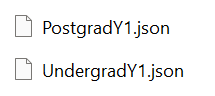
Export a collection. Save your collections under a JSON file format. You may wish to do this in order to save/share them or to organize as files within your PC.
Import a collection. You may want to import an entirely different collection of SOPs to what you are currently using.
Toggle between editing protocol SOP steps and building a lab layout
SOP protocol steps editor menu
Layout editor menu
Clear the grid
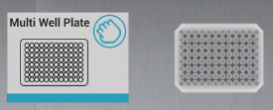
Click on the object placed in the SOP layout to see these options and features
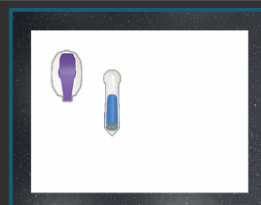
Dispenser (blue if dispenser). Dispensers offer unlimited supply of a consumable. These consumables are portable once released from a dispenser.
Portable (green if portable). Small instruments and vessels may be portable in headset and so the user can reposition them.
Delete Asset
Rotate Asset
Feature Notes
Grid Size:In the Eclipse SOP Creator, the grid size corresponds to a 2m x 2m boundary within the headset. It’s essential to account for the physical space limitations when designing a layout that is both safe and functional.
Note: Consider creating multiple SOPs if multiple assets are required at different times and do not fit within the restricted area all together.
Placement: Object placement should be carefully considered prior to finalizing the layout in the SOP builder. Assets labelled as not portable have fixed positions once the user enters the headset.
Note: If the MSC becomes crowded, consider placing portable assets outside of the MSC with ethanol spray so that they can be sterilized and transferred in in headset.
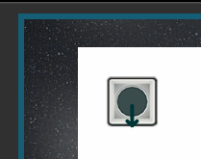
Orientation: Certain instruments have arrows depicting their forward direction.
Dispensers:Single–use consumables and boxes of pipettes/vials come in the form of a boxed dispenser. This means that they hold indefinite numbers of that asset and so only a single copy is required in layout editor.
Note: Although dispenser boxes are notportable, the contained unpackaged assets are and so thepositioning of these boxes on the grid is important to consider in layout builder.
Collections: Consider using the collections feature to organize multiple SOPs.
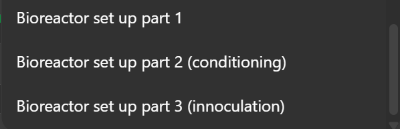
Note: For Example, use a collection named Stirred Tank Bioreactor to organize multiple SOPs as parts of a whole training module.
Collection File Export: Collection files can be exported and downloaded to disk. These files can then be shared and imported on other devices.
This website is using Cookies.
We use them to give you the best experience. If you continue using our website, we’ll assume that you are happy to receive all cookies on this website