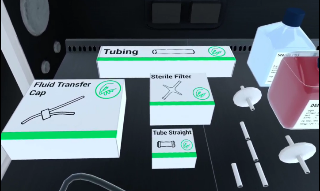
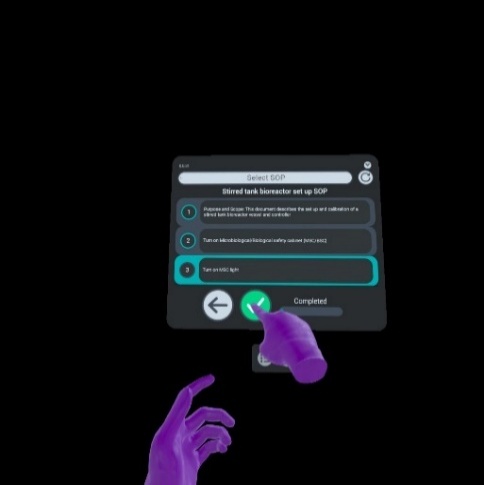
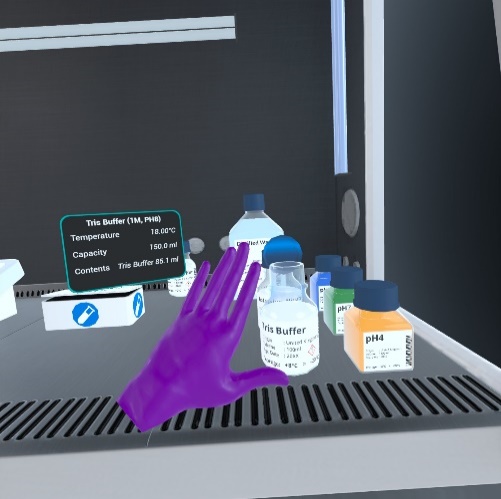
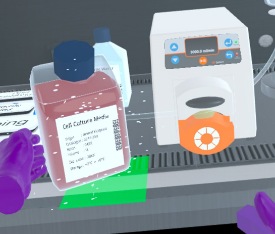
Eclipse Creator is a mixed–reality app for thedelivery of hands-on technical laboratory training. Following the creation of SOPs/protocols using the desktop app, Eclipse Creator can be loaded in headset and both the instructional content and objects overlaid onto a real-world environment. This will guide trainees through protocols whilst allowing minimally restricted interaction with devices, equipment and consumables. Below is a short tutorial video to help get you started:
Controls/Symbols
The SOP user interface allows the user to navigate between collections and SOPs
License key
SOPs
Refresh SOPs
Inactive connection to desktop app
Active connection to desktop app
Back
The hand menu gives users the options to reset app features or quit
Recenter SOP user interface – via hand menu
Reset orientation – via hand menu
Quit app – via hand menu
Feature Notes
Boundary: Player boundaries must be created in the VR headset and refers to a safe area in which Eclipse Creator can be experienced. The headset should request that this is set prior to launching the application.
Space Orientation: Users can use the reorientate function to set the center of their play space and adjust their orientation.
Dispensers: Single – use consumables and boxes of pipettes/vials come in the form of a boxed dispenser. This means that they hold indefinitenumbers of that asset. The assets can be accessed by either pinching or grabbing at the box.
Note: Pipette tips come within the dispenser category but these can be connected to the pipette in the same way in which you would in the laboratory, by pressing the device into the box.
Interactions:Asset interactions include: grabbing, pinching, connecting, ejecting, withdrawing, spraying etc. In order to visually understand how interactions are performed, we highly recommend you access the tutorial either via our website or via email.
SOP User Interface:The SOP user interface allows players to switch between Collections and SOPs within Collections, and tick steps off 1 by 1. SOP Collections can be refreshed by pressing the Refresh button.
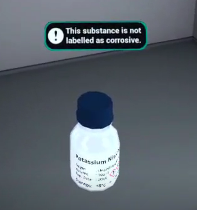
Pop-Ups:Instrument pop-ups provide information into it’s properties. This includes: names of objects, temperatures, volumes, sterility, and consumable state. This information panel can be viewer by bringing your hand to an object.
Attachment: When object interactions are possible, users will be shown a blue preview of the held object in the attached position. If an object can be placed on a surface space, the area will appear green and if not, it will appear red.
Warnings:Warnings will occur if the user attempts to do something hazardous or which could be deemed as improper technique.
This website is using Cookies.
We use them to give you the best experience. If you continue using our website, we’ll assume that you are happy to receive all cookies on this website